Need to initiate a manual integrity check of your Deduplication store?
The other day after I return from holidays, that one of the restore points was marked red color in our VDR (VMware Data Recovery) appliance and that the backups were not executed. The integrity check failed because of that damaged restore point. (BTW you can find which VM causing the integrity error check by double clicking the VDR report in the REPORTS TAB)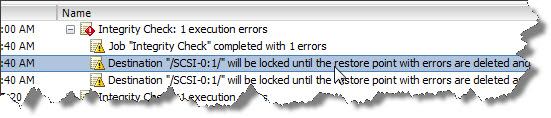
There is not any kind of reporting capability built into VDR so if your backups went wrong during a certain of period of time (you don’t check them), you’re not aware that you’re running without backups. Maybe future release will implement this feature?
Fortunately, we do implement several backup product with different backup strategies in our environment sowe were not affected…. But I thought, It’s a shame that VDR does not have a e-mail reporting capability built-in.
 To
learn more about VDR and other advanced features inside of VMware
vSphere 4, why not using this excellent training videos made by David Davis, Hal Rottenberg and Rick Scherer? There are 5 DVDs of high quality video learning courses in the whole package composed of VMware vSphere 4 and the vSphere Pro Vol. 1 Training. Get it for $694! Limited-Time Offer Only $594!.
To
learn more about VDR and other advanced features inside of VMware
vSphere 4, why not using this excellent training videos made by David Davis, Hal Rottenberg and Rick Scherer? There are 5 DVDs of high quality video learning courses in the whole package composed of VMware vSphere 4 and the vSphere Pro Vol. 1 Training. Get it for $694! Limited-Time Offer Only $594!. Read More in my blogpost about the vSphere Pro Training Course, which shows some advanced scripting, automating methods and software used in managing vSphere 4, and also using VMware View and Thinapp to easier migrate to Windows 7 by virtualizing your desktop applications.
Which steps you need to take to “repair” this error in your VMware Data Recovery appliance?
01. First connect to your VDR and position yourself on the RESTORE tab. Expand the VM which has the damaged restore point and click inside the checkbox to make a selection. Then Right click and select Mark for Delete. The same as seen on the image below. There should appear a little RED cross …..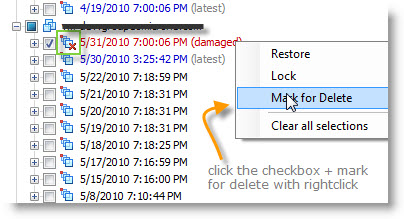
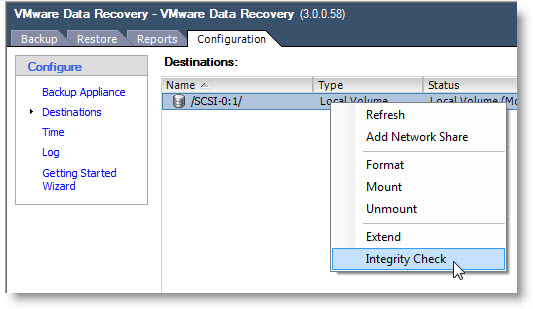
02. Then click on the CONFIGURATION Tab to see your destination – the virtual disk where is your deduplication store located. Do a right click > Integrity Check.
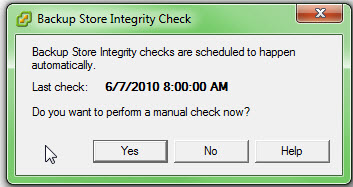
You’ll see a window which will pop up asking you, if you want to initiate a manual integrity check. Click yes. ?
After a manual check you should be able to launch your backup of your VMs again and you should not encounter this error of Integrity check.
See a follow up post about some more details in VDR 1.2 concerning verification and integrity check.
Source: VMware communities and VMware Data Recovery Administration Guide 1.1
Also: VMware Data Recovery 1.2 Administration Guide
Fuente: http://www.vladan.fr/how-to-perform-a-manual-integrity-check-in-vdr-when-you-have-damaged-restore-point/
J.D. & S.


